Google Apps Script for Beginners: Copy a Drive Folder with One Button
Learn Google Apps Script by copying one small Drive folder. Set up Clonable, press Copy to Cloned, and check what actually happened.
Want the bigger picture first? Read how Apps Script can automate Google Workspace tasks. Already want to try it with an agent? Jump straight to the AI-agent prompt.
You don't need an AI deciding where your files belong to automate a folder copy. You need a rule: take what's in this folder and copy it over there. Google Apps Script can handle that kind of instruction.
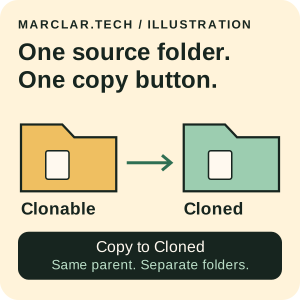
Here, you'll create a folder named Clonable, then press Copy to Cloned in a small app called Cloner. It creates Cloned alongside Clonable in the same parent—a sibling folder, not a folder inside the original. No name to type, template to choose, or destination to set up. One starting folder. One start button.
The cover is an illustration, not a screenshot. Clonable stays in place; Cloned is a separate sibling folder.
One important limit before you put files anywhere: this is a code-based walkthrough, not a claim of a completed live Google integration test. The local tests simulate Google services; they don't establish that Google's background scheduling will work as intended. There's an unresolved runtime and trigger limit below. Use a few tiny, invented files, not anything you need back in one piece.
What Apps Script does (and what this example doesn't)
Google Apps Script runs JavaScript, a programming language, on Google's servers. You give it instructions; its built-in services give those instructions a way to work with Google products.[1] Think of them as separate toolboxes:
- Drive (
DriveApp): files and folders. - Gmail (
GmailApp): email. - Sheets (
SpreadsheetApp): spreadsheets and cells.
This project automates Drive only: it copies folders and files. It doesn't send email, edit spreadsheet cells, or use AI to choose what to copy. Copying a Google Sheet as a Drive file isn't the same thing as changing the cells inside it. That distinction matters if you're imagining what else you could build.
You could later add code to log a result in a Sheet or prepare an email, but those would be separate features needing their own review, permissions, and tests. For now, the rule is fixed. AI can help you understand the script; it isn't required to run it.
First, know where the copy goes
Cloner adds a panel to Drive's sidebar. When you press Copy to Cloned, it checks that the configured source is named exactly Clonable, finds exactly one accessible parent, and refuses to proceed if that parent already contains Cloned. Only then does it create the new folder and schedule the resumable background worker—the part of the script that copies the contents. It never overwrites or deletes an existing Cloned.
Why check the parent? Because access to Clonable doesn't necessarily let you create a folder beside it. You need permission to read/copy the source and write access to its parent. Use a regular My Drive folder, not My Drive itself, a shortcut, or a shared-drive folder. A wrong source name, no accessible parent, or ambiguous parents means refusal before output, rather than a guess about where your files should go.
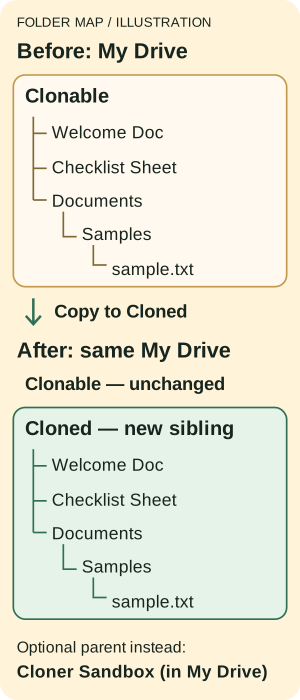
Illustration: both folders share one parent. Cloned receives the contents directly, not another enclosing Clonable folder. The optional Cloner Sandbox works the same way.
1. Give it something harmless to copy
Use a desktop browser and stay in the same Google account throughout. If it's a work or school account, check that your administrator allows Apps Script and development add-ons. A separate practice account with no sensitive files is safer: the Drive permission you'll be asked for is broad, even though this task is small. Keep the practice area and its parent's sharing restricted.
In My Drive, choose New → New folder and name it exactly Clonable. Open it and create:
- A Google Doc named Welcome Doc, containing “Practice only.”
- A Google Sheet named Checklist Sheet, with “Practice task” in cell A1.
- A folder named Documents, with a folder named Samples inside it. Upload a small harmless text file named sample.txt into Samples.
You should have this:
My Drive/
└── Clonable/
    ├── Welcome Doc
    ├── Checklist Sheet
    └── Documents/
        └── Samples/
            └── sample.txt
If you'd rather keep the exercise together, put Clonable inside a private Cloner Sandbox folder in My Drive. That becomes the parent, so Cloned will appear there too. Don't create Cloned yourself. The app needs that name to be available; preparing the destination would actually stop it from starting.
2. Put the code in Apps Script
Open the public teaching repository. You need two files: Code.gs and appsscript.json. Leave the tests, README, and assets out of the Apps Script editor.
- Open script.google.com and choose New project. Name it
Drive Cloner Sandbox. - Replace the editor's Code.gs with the repository's complete Code.gs. GitHub's Raw view lets you copy the code without the surrounding webpage.
- Open Project Settings and enable Show “appsscript.json” manifest file in editor.[2]
- Return to the editor and replace appsscript.json with the repository's manifest. Keep the V8 runtime and adjust the timezone if needed. Save.
The manifest is just the project's settings file: its add-on name, host, logo, callback (the function Google calls), and permissions.[2] Keep the supplied callback and public logo URL. You're making a standalone Apps Script project, not attaching code to a spreadsheet.
3. Tell it which Clonable is yours
Drive can have several folders with the same name. A folder ID tells the script which particular folder you mean. Open Clonable, not its parent, and look at the URL. Copy only the part after /folders/; leave out the rest of the address and any ? query parameters.
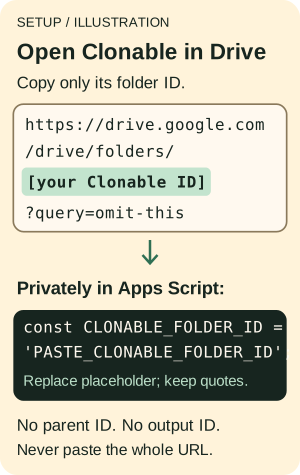
Illustration with placeholder text, not a real folder ID. Configure Clonable only; the app resolves its parent itself.
In your private Apps Script editor, find:
const CLONABLE_FOLDER_ID = 'PASTE_CLONABLE_FOLDER_ID';
Replace only PASTE_CLONABLE_FOLDER_ID with your folder's ID. Leave the quotation marks and punctuation alone. Save.
That's the one private setting. There's no parent ID or output ID to add. Keep the placeholder in public files and real IDs out of AI chat. You don't need to make a folder public for this to work; don't change its sharing to try to fix setup.
4. Install your test add-on—and read the permission request
Choose Deploy → Test deployments. If asked for a type, select Google Workspace Add-on, then Install → Done. Reload Drive and open Cloner from the right-hand sidebar. This installs a development version for testing; it doesn't publish an app to the Marketplace.[3]
Start from that sidebar, not by pressing the editor's Run button on a callback. Don't deploy a web app or manually add a recurring trigger. A trigger schedules code to run, and this code creates its own worker triggers.
When Google asks you to authorize access, check the project and account as well as the permissions. An OAuth scope is a category of access you're granting.[5] This manifest asks for:
- Broad Drive access (
https://www.googleapis.com/auth/drive) to read folders and create copies. The grant is not limited to Clonable. - Script trigger management (
https://www.googleapis.com/auth/script.scriptapp) to schedule background work.
This is the slightly uncomfortable part: the folder ID tells the code what to work on, not what Google allows it to access. There are no Gmail- or Sheets-specific scopes, but the Drive permission is still broad. A sandbox can contain a setup mistake; it doesn't shrink that grant. Authorize only code you've reviewed and trust.
An unverified-app warning isn't something to click past on habit. Verify that it's your project, then review the code and permissions. If an administrator blocks installation, stop and ask them. Google's guide requires editor access for unpublished add-on testers and describes same-domain restrictions for additional testers.[3] Follow the setup guidance for your account rather than switching Cloud projects, enabling billing, or loosening security until something happens.
5. Copy, then look at the actual files
This is a smoke test: a small trial of the basic path, not evidence that a much larger job will work.
- Press Copy to Cloned once. There's no field to fill in or template to select. Don't start another job in a second tab.
- Use Check progress to refresh the status. The card shows a snapshot, not a live dashboard; the trigger may take time to run.
- Choose Open folder. Is Cloned beside Clonable? Both should be directly in My Drive, or both inside your optional Cloner Sandbox.
- Open Welcome Doc, Checklist Sheet, and Documents/Samples/sample.txt inside Cloned. Compare their contents with the originals. You shouldn't find another Clonable folder enclosing everything inside Cloned.
- Wait for completion, then read any Skipped details. Done means traversal ended, not that every item copied. In plain terms, the worker finished going through the folders. Check the files, not just the counters.
- Confirm that Clonable and its originals are unchanged. Inspect sharing on Cloned and its copied files: the app doesn't reproduce source permissions, and access inherited from the parent can affect who sees the output.[8]
- Select Start another, then Copy to Cloned again. With Cloned still there, the app should refuse the new copy without overwriting or deleting anything. Refusal is the result you want for this step.
Want a fresh copy after that? Inspect what you want to keep, wait until activity has stopped, then deliberately rename or remove the old Cloned. If the job is unfinished and you want to continue it, use Resume instead: it uses the same partial Cloned. Don't rename, move, or edit either folder tree while a job is running or paused.
What the button hides
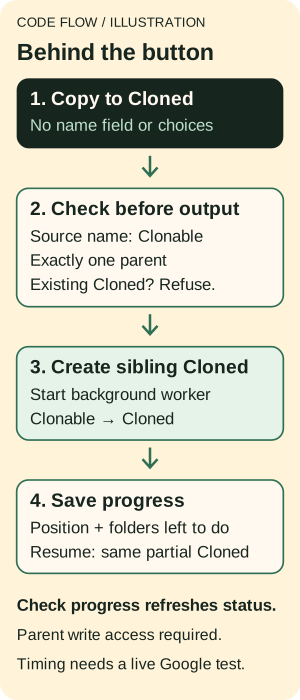
Illustration of intended code flow, not a recorded Google execution. Timing and completion still depend on platform limits and permissions.
If you open the code, onHomepage builds the panel. onCreate checks the source and parent, creates Cloned, and schedules runCloneJob. The worker keeps a queue—a to-do list of folders—and saves both the list and its current position so a later run can attempt to continue. The job's state determines which progress, Resume, and reset controls you see.
Here's the unresolved part. The worker uses a voluntary 4.5-minute slice and requests rapid continuation triggers. But Google's quota table lists a 30-second Google Workspace add-on runtime, and its trigger guide says add-ons can use time-driven triggers at most once per hour.[6][7] Those assumptions don't line up. Setting a longer timer in code doesn't give the code permission to run longer.
A live Google test is needed to establish what this deployment allows; larger copies may need a separately designed standalone worker. Keep the first source tiny, inspect Apps Script's Executions, and stop if Google rejects the scheduling assumptions. Local simulations can't answer that question.
There are recovery limits too. The worker compares names and counts, not copied contents against durable source identities. Its saved checkpoints aren't transactional (a save can succeed only in part), overlapping workers aren't fully coordinated, and very wide folder trees can exhaust saved-state storage. Useful things to learn from; not a backup or synchronization service.
If it stops, don't start clicking everything
Look at the specific failure first:
- Cannot open Clonable: check the one ID, your signed-in account, and source read/copy access.
- Wrong source name: it must be exactly Clonable, including capitalization. This fails before output.
- No accessible parent or ambiguous parents: use a regular My Drive folder with exactly one accessible parent. The app won't guess where to put the copy.
- Cannot create Cloned: check write access to Clonable's parent. Later setup or copying failures can still leave partial output.
- Working, but nothing changes: use Check progress, then inspect Apps Script's Executions for authorization, quota, or trigger errors.[6][7]
- Resume appears: fix the cause first. Resume continues the saved job in the same partial Cloned; it doesn't repair permissions or remove a quota.
- Start over or Start another: these reset the saved job state and queued worker triggers, not the copied files. Reset isn't undo. An operation already in flight may take time to stop.
- Cloned already exists: inspect it. Resume the saved job if appropriate; for a fresh copy, wait until activity stops before deliberately renaming or removing the old output.
To uninstall, choose Deploy → Test deployments → Uninstall.[3] Check the project's Triggers page for remaining runCloneJob triggers and remove them if present. Inspect Executions before manually cleaning up disposable output. Uninstalling the add-on and deleting its copies are separate jobs.
Get an AI agent to help without giving it the keys
If you'd like help understanding or adapting this, give the following prompt to an AI coding agent with repository/file access. Replace the bracketed description with your harmless practice contents—not real folder IDs or private documents. The repo prompt also works on its own.
Help me set up and, only where agreed, customize this Google Apps Script Drive copier:
https://github.com/bigpager/google-apps-script-drive-cloner

My practice contents: [For example, Welcome Doc, Checklist Sheet, and Documents/Samples/sample.txt for a project.]

I am a beginner. Read the actual README, Code.gs, appsscript.json, tests, and docs/cleanup-review.md before editing. Explain Apps Script and the limitations plainly. This app copies Drive folders/files only; it does not send Gmail or edit spreadsheet cells.

Preserve one regular My Drive source folder named Clonable and one start button labeled Copy to Cloned. No name input, template selector, extra destination setup, parent ID, or output ID. The only shareable setting is const CLONABLE_FOLDER_ID = 'PASTE_CLONABLE_FOLDER_ID';. Tell me to replace its placeholder privately in Apps Script, never in chat or public files.

Before output, check the exact Clonable name and resolve exactly one accessible parent. Refuse a wrong name, no accessible parent, or ambiguous parents. Require source read/copy access and parent write access. Create fixed sibling Cloned in that parent, whether My Drive or optional Cloner Sandbox. Refuse existing sibling Cloned; never overwrite/delete it. Preserve the existing resumable worker, progress, Open folder, skipped reporting, Resume, and reset controls.

Resume uses the same partial Cloned. Reset clears state and queued triggers, not copied files; in-flight work may take time to stop. A fresh copy requires deliberately renaming/removing old Cloned after activity stops and after inspection. Do not edit, move, or rename either tree while running or paused.

Ask only necessary questions about account restrictions, practice contents, and proposed changes. Do not ask for passwords, tokens, real folder IDs, or confidential files. Work in a separate local copy; leave the original unchanged. No license is currently supplied: do not invent a grant or assume public visibility permits redistribution. Propose a small plan and implement only agreed changes. Do not silently add email sending, spreadsheet mutations, external services, or extra OAuth scopes.

Provide beginner setup instructions: create only Clonable and sample contents, copy Code.gs and appsscript.json, configure the single ID privately, and install a personal Google Workspace Add-on test deployment. Disclose broad Drive and script trigger management permissions; the ID does not narrow the grant. Never make folders public or bypass administrators. Explain stopping and uninstalling.

Run the local regression suite and add tests for changes. Report actual commands/results, without guessing counts. Distinguish mocks from live Google testing. Preserve the unresolved 30-second add-on runtime and at-most-hourly time-driven trigger caveat: longer worker slices and rapid chaining need live validation. If blocked, explain the issue and propose a separately approved design; do not claim success.

Give a manual checklist for sibling placement, copied contents, unchanged originals, skips, sharing, existing-Cloned refusal, wrong-name/no-parent failure before output, and Resume using the same partial Cloned. Never claim a live test unless performed.

Keep sensitive data, credentials, account details, and real IDs out of public files and git history. Ask approval before pushing, publishing, installing, deploying, authorizing, accessing real documents, changing sharing, sending email, or deleting anything. Do not rewrite or migrate history.

Deliver working files, beginner README, tests, change summary, limitations, and a verification checklist. State what was actually tested, what still needs my Google-account test, and blockers. An agent without file access must not pretend it edited or tested anything.
Start by changing what's inside Clonable, not the fixed names or button. The cleanup review explains current behavior and possible improvements. The local regression suite uses fake Google services; passing it isn't proof of installation, authorization, or real trigger timing. Also, no license is currently supplied. A public repository isn't automatically open-source or permission to redistribute.
If you'd like help learning Apps Script for your Google tools, bring one small task you keep repeating. For this one, start with Welcome Doc. Open the copy. Does it actually say “Practice only”? That's a more useful first check than a reassuring progress bar.
Sources
[1] https://developers.google.com/apps-script/guides/services [2] https://developers.google.com/apps-script/concepts/manifests [3] https://developers.google.com/workspace/add-ons/how-tos/testing-workspace-addons [5] https://developers.google.com/apps-script/concepts/scopes [6] https://developers.google.com/apps-script/guides/services/quotas [7] https://developers.google.com/apps-script/guides/triggers/installable [8] https://developers.google.com/workspace/drive/api/guides/manage-sharing